Tuesday, 31 December 2024

𝐁𝐞𝐬𝐭 𝐅𝐫𝐞𝐞 𝐈𝐧𝐯𝐨𝐢𝐜𝐢𝐧𝐠 𝐒𝐨𝐟𝐭𝐰𝐚𝐫𝐞 𝐟𝐨𝐫 𝐅𝐫𝐞𝐞𝐥𝐚𝐧𝐜𝐞𝐫𝐬


1. Wave

Best For: Freelancers and small businesses needing invoicing and basic accounting.

Features:

Create and send unlimited invoices free.

Track payments and overdue invoices.

Customize invoices with branding.

Includes basic accounting and receipt scanning.

Pros:

No limits on invoices or customers.

Integrated with Wave's free accounting tools.

Easy-to-use interface.

Cons:

Payment processing fees for online payments (2.9% + $0.30 per transaction).

Platform: Web, iOS, Android.


2. Zoho Invoice

Best For: Freelancers looking for a feature-rich invoicing tool.

Features:

Create and customize invoices.

Support for multiple currencies and languages.

Track time and billable hours for projects.

Payment reminders and recurring invoices.

Pros:

Free for freelancers and small businesses.

Time tracking and expense management.

Supports Zoho apps integrations.

Cons:

Limited to freelancers and very small businesses.

Platform: Web, iOS, Android.


3. PayPal Invoicing

Best For: Freelancers already using PayPal for payments.

Features:

Create and send professional invoices free of charge.

Accept multiple payment methods (PayPal, credit cards).

Automated reminders for unpaid invoices.

Pros:

No setup fees or monthly charges.

Familiar payment gateway for clients.

Cons

High transaction charges (2.9% + $0.30 per transaction).

Less flexible in terms of customization.

Web, iOS, Android. Platform


4. Invoice Ninja

Best For

Freelancers with multiple clients and projects

Features

Create up to 20 invoices a month free of charge.

Quote creation and quotation conversion into an invoice.

Track time and manage expenses.

Integration with more than 40 payment gateways

Pros

There is an open-source version which can be self-hosted

It has project management tools.

It supports more than one currency and language

Cons

Free plan limited to 20 invoices per month.

Web, iOS, Android.


5. Bonsai

Best For: Freelancers who want all-in-one service (with only limited free features).

Features:

Simple invoicing and tracking payments.

Create and manage contracts.

Track projects and tasks.

Pros:

It's designed especially for freelancers.

Streamlines the process of making invoices using the proposals and contracts.

Cons:

Only has a few free features; advance tools require a paid plan.

Web, iOS, Android.


6. Square Invoices

Best For: Freelancers needing a simple tool to collect payments easily.

Features:

Create and send unlimited invoices free of charge.

Setup recurring invoices.

Accept credit card, ACH, or Square payments.

Pros:

No subscription fees for basic invoicing.

Real-time payment tracking.

Includes a point-of-sale (POS) system for freelancers selling products.

Cons:

Payment processing fees (2.6% + $0.10 per transaction).

Platform: Web, iOS, Android.


7. FreeAgent (Free Plan via NatWest/RBS)

Best For: UK-based freelancers.

Features:

Create invoices with tax calculation (e.g., VAT).

Track expenses and integrate with banking.

Generate tax reports and reminders.

Pros:

Excellent for UK freelancers managing taxes.

Free if you bank with NatWest or RBS.

Cons:

Limited availability outside the UK.

Platform: Web, iOS, Android.


8. And.co

Best For: Freelancers looking for simplicity and integration with task management.

Features:

Generate and send unlimited invoices.

Integrates contracts, proposals, and expense tracking.

Accept payments via Stripe, PayPal, and other platforms.

Pros:

Clean, intuitive interface.

Automated invoicing and tracking.

Cons:

Limited advanced features on the free plan.

Platform: Web, iOS, Android.
 "Find Out What Your Website’s Missing – Let’s Talk Today"

Monday, 30 December 2024

𝐖𝐡𝐚𝐭 𝐢𝐬 𝐖𝐞𝐛𝐏? – 𝐓𝐡𝐞 𝐏𝐫𝐨𝐬 𝐚𝐧𝐝 𝐂𝐨𝐧𝐬 𝐨𝐟 𝐭𝐡𝐞 𝐍𝐞𝐱𝐭-𝐆𝐞𝐧 𝐈𝐦𝐚𝐠𝐞 𝐅𝐨𝐫𝐦𝐚𝐭


What is WebP?

WebP is the modern image format by Google that offers better compression of images in the web. It allows compression in both lossy and lossless forms, and the support for transparency or the alpha channel and animation is an added feature, thus helping it in various usages.

WebP was initially developed to reduce image file size by maintaining high visual quality and then improving the performance and quickening the load times of a web page.


Features of WebP:

Lossless Compression: Retains perfect image quality with significantly smaller file sizes.

Lossy Compression: Reduces file size by approximating some data, which will maintain reasonable quality.

Alpha Channel Support: Allows for transparent images in both lossy and lossless modes.

Animation Support: Can replace GIFs with smaller and smoother animations.

Pros of WebP:

1. Smaller File Sizes

Lossy WebP: 25–34% smaller than JPEGs.

Lossless WebP: 26% smaller than PNGs.

This makes websites load faster, improving user experience and SEO rankings.

2. Versatility

It combines the functionality of several formats, such as JPEG for images, PNG for transparency, and GIF for animations.

It eliminates the need to use various formats for different purposes.

3. Better Page Speed

Smaller images use less bandwidth, improve mobile browsing, and result in faster website speeds.

4. Supports Transparency

WebP, like PNGs, supports alpha transparency, which is helpful for overlays, logos, and icons.

5. Open Source

WebP tools and libraries are free and accessible to developers.

6. Animations

WebP can easily substitute for those older GIFs, taking less space for better animated images.

Cons of WebP:

1. Low Compatibility

Though most current browsers (such as Chrome, Edge, Firefox, and Opera) support WebP, some of the older versions of browsers (for example, Internet Explorer or Safari) may not fully support WebP.

Some software tools and applications will require a few plugins or updates to process WebP files.

2. Lossy Compression Quality Issues

Lossy WebP compression is very efficient but will introduce artifacts or degrade the image at higher compression rates.

3. Difficulty Editing

Not all graphic design software natively support WebP (older Photoshop versions excepted), but plugins may exist.

4. Overhead in Converting

Images within existing libraries may have to be spent time and money to convert to WebP.

5. Larger Animated Files

While WebP is usually smaller than GIFs, the file size of animated WebPs is still much larger than the optimized video format, like MP4.

Use Cases for WebP:

E-Commerce: Faster product images result in better conversion rates.

Blogs and News Sites: Reduce the page weight for image-intensive articles.

Web Applications: Enhance the performance of graphics-intensive platforms.

Social Media: Optimize posts containing transparent or animated images.

WebP Browser Support as of 2024:

Supported Browsers: Google Chrome, Microsoft Edge, Mozilla Firefox, Opera, Safari (macOS and iOS 14+).

Not Supported: Internet Explorer, old versions of Safari.

When to use WebP?

Use WebP when speed is a high priority and your audience will predominantly use a modern browser.

Avoid using WebP when legacy support in the browser is crucial.

Alternative of WebP:

JPEG : Best used for photographs when simplicity in compression is required

PNG: Used for good quality images requiring transparency.

GIF: Good for simple animations but mostly outdated.

AVIF: Another next-gen format, but this is better compressed than WebP and is less supported. 


"Find Out What Your Website’s Missing – Let’s Talk Today"

Friday, 27 December 2024

𝐆𝐞𝐭 𝐒𝐭𝐚𝐫𝐭𝐞𝐝 𝐨𝐧 𝐁𝐮𝐢𝐥𝐝𝐢𝐧𝐠 𝐘𝐨𝐮𝐫 𝐇𝐮𝐛𝐬𝐩𝐨𝐭 𝐖𝐞𝐛𝐬𝐢𝐭𝐞: 𝐀 𝐒𝐭𝐞𝐩-𝐛𝐲-𝐒𝐭𝐞𝐩 𝐆𝐮𝐢𝐝𝐞


1. Set up your HubSpot Account

First, you will need to create a HubSpot account to get started on building your website.

  • Sign Up: Go to HubSpot and sign up for an account. You can begin with a free plan or choose a paid plan to get more advanced features.
  • Setup: Follow the guided steps to set up your account, including linking your domain (if applicable).


2. Define Your Website Goals

Before you begin designing, it is helpful to have some clear objectives for your website:

  • What is the primary purpose of your website? (e.g., lead generation, brand awareness, e-commerce)
  • Who is your target audience?
  • What key actions do you want visitors to take? (e.g., fill out a form, subscribe to a newsletter, make a purchase)

Document these goals to guide the design and content strategy.


3. Plan Your Website Structure

A well-organized structure ensures a seamless user experience.

  • Sitemap: Create a sitemap to outline your website's key pages, such as:
  • Homepage
  • About Us
  • Services/Products
  • Blog
  • Contact Us
  • FAQ/Resources
  • Navigation: Navigation should be simple and intuitive, guiding users effectively.


4. Select a HubSpot Theme

HubSpot offers a wide range of themes and templates to suit your needs.

  • Marketplace: Check out the HubSpot Asset Marketplace for free and premium themes.
  • Customization: The theme should be responsive and align with your branding.
  • Tip: Preview the theme on mobile and desktop to ensure usability.


5. Customize Your Website Design

HubSpot's drag-and-drop editor makes it easy to make your site personal.

  • Brand: Add your logo and brand colors and fonts as well.
  • Layouts: Customize page layouts to push key elements such as Call-to-Action.
  • Consistency: Uniform design applies to all pages for a polished look.


6. Good Quality Content

Content is always the backbone of your site. Focus on giving something of value to your people.

  • Homepage: Use compelling messaging and great visuals and make visitors fall in love with that.

  • About Us: Share your mission, vision, and team information.

  • Services/Products: Highlight your offerings with detailed descriptions and images.

  • Blog: Publish informative articles to attract and engage your audience.

  • Contact Page: Include forms, phone numbers, email addresses, and a map if applicable.


7. Set Up Forms and CTAs (Calls-to-Action)

Lead generation is a critical aspect of most websites. HubSpot makes it simple:

  • Forms: Use forms in the site to capture information about visitors, like email addresses or questions. Place them throughout the site.
  • CTAs: Use effective CTAs to guide visitors to desired actions on your site, such as downloading resources or booking demos.

  • Tip: A/B test your CTAs to learn what works best.


8. Optimize for SEO

Make sure your site is search-engine friendly to help drive organic traffic.

  • Keywords: Conduct keyword research and incorporate them in your page titles, header, and content.

  • Meta Tags: Write meta descriptions for every page to enhance click-through rate.

  • Images: Optimize images for faster loading speed and add descriptive alt text.

  • HubSpot's SEO Tools: Use built-in suggestions to make your site's search engine performance better.


9. Integrate Analytics and Tracking


HubSpot analytics will help you see how your website is doing.

  • Dashboards: Establish custom dashboards to track metrics such as traffic, conversion rates, and user behavior.
  • Heatmaps: Use third-party software to understand how your users will be interacting with your website.

  • Goal Tracking: Tracking how successful your CTAs and forms are.


10. Test Your Website

  • Launch preparation: thoroughly test to make sure everything works, prior to the launch date.
  • Cross-Browser Testing: Check on how different browsers work on your website: Chrome, Firefox, Safari, etc.

  • Responsive Design: Checking your site on all devices possible: desktop, tablet, smartphone.

  • Broken Links: Tools can find and flag these so they get fixed.


11. Publish and Launch

Now, after you are satisfied with your website's design and functionality, it's the time to go live.

  • Connect Your Domain: Connect your custom domain to HubSpot if you haven't done so already.

  • Launch: Publish your website and share it through email marketing, social media, and more.


12. Maintenance and Updates

Upgrades will make your website remain effective for a long period. Update the content, including adding blog posts or case studies regularly.

  • Performance Monitoring: Review analytics and change strategies according to needs.
  • Design Updates: Periodically update your design to ensure it looks current and aligned with trends.


Wednesday, 25 December 2024

𝐖𝐡𝐚𝐭 𝐌𝐚𝐤е𝐬 𝐚 𝐖е𝐛 𝐃е𝐬𝐢𝐠𝐧 𝐒𝐭𝐚𝐧𝐝 𝐎𝐮𝐭 𝐢𝐧 𝐓𝐨𝐝𝐚𝐲’𝐬 𝐂𝐨𝐦𝐩е𝐭𝐢𝐭𝐢𝐯е 𝐌𝐚𝐫𝐤е𝐭?


A great web design in today's competitive market is more than a beautiful visual appeal; it should offer a great user experience, convey the brand's identity, and be responsive to ever-changing digital trends. The following are what make a web design stand out:

1. User-Centric Design

  • Intuitive Navigation: Ensure menus and navigation paths are clear and easy to follow.
  • Accessibility: Design for inclusivity by meeting accessibility standards (e.g., WCAG).
  • Mobile Responsiveness: Optimize the design for various devices, ensuring seamless usability on smartphones and tablets.

2. Visually Engaging Aesthetics

  • Modern and Clean Layouts: Use whitespace effectively to avoid clutter and emphasize key elements.
  • Consistency in Branding: Reflect the brand’s identity through cohesive color schemes, typography, and imagery.
  • Bold Visuals: Incorporate high-quality images, videos, or illustrations that captivate users.

3. Performance Optimization

  • Fast Loading Times: Ensure pages load quickly to prevent user drop-offs.
  • SEO-Friendly Structure: Use optimized code and content to enhance the ranking of the search engine.
  • Interactive Elements: Add features such as animations, hover effects, or micro-interactions.

4. Personalization and Interactivity

  • Dynamic Content: Use data-driven insights to show personalized recommendations or content.
  • Interactive Features: Integrate chatbots, quizzes, or surveys to engage visitors.
  • Community Elements: Include forums, reviews, or social sharing options to foster engagement.

5. Storytelling through Design

  • Purposeful Content: Storytelling that guides the users through the website with meaningful content and logical flow.
  • Visual Hierarchy: Use size, color, and placement to emphasize key messages.

6. Trend Adaptation

  • Dark Mode: Provide light and dark themes to enhance the user's preference.
  • Minimalism: Use simplicity while focusing on functionality rather than excessive design elements.
  • Neumorphism/Glassmorphism: Experiment with newer visual trends to give the website a new look.

7. Trust and Credibility

  • Secure Design: Use HTTPS, SSL certificates, and clear privacy policies.
  • Testimonials and Case Studies: Use customer success stories or client logos.
  • Clear Calls-to-Action (CTAs): Take the user toward the intended action with strong and well-placed CTAs.

8. Analytics-Driven Enhancements

  • Heatmaps and User Feedback: Continuous insight gathering to refine and improve the design.
  • A/B Testing: Test multiple design elements to determine which will best connect with the user.

9. Future-Ready Design

  • Scalability: Build to grow with designs accommodating new content or features.
  • Incorporation of new/emerging technologies: Engage AR/VR, voice search, or AI to incorporate next-generation experiences.


"Find Out What Your Website’s Missing – Let’s Talk Today"

Tuesday, 24 December 2024

𝙃𝙤𝙬 𝘾𝙖𝙣 𝙋𝙧𝙤𝙛𝙚𝙨𝙨𝙞𝙤𝙣𝙖𝙡 𝙒𝙚𝙗 𝘿𝙚𝙨𝙞𝙜𝙣𝙚𝙧 𝘽𝙚𝙣𝙚𝙛𝙞𝙩 𝙔𝙤𝙪𝙧 𝘽𝙪𝙨𝙞𝙣𝙚𝙨𝙨?


Professional web designers play an important role in taking your business to the next level by creating a compelling online presence that drives customer engagement and conversions. Here is how hiring a professional web designer can benefit your business:

1. Improved User Experience

  • A professional web designer ensures your website is easy to navigate, intuitive, and aesthetically pleasing, making visitors stay longer and thus lowering bounce rates.

2. Custom Design Tailored to Your Brand

  • A professional designer will create a customized unique design that will be specifically aligned with your brand identity so that your business stands apart from the rest.

3. Better Search Engine Optimization

  • Designers usually are working with SEO principles that ensure your website is optimised for speed, mobile-friendliness, and a proper structure, which ultimately increases your visibility on the search engine results.

4. Better Conversions

  • A good website has clear calls-to-action and optimized layouts, where visitors are prompted to act appropriately, such as making a purchase, filling in forms, or subscribing to a newsletter.

5. Mobile Responsiveness

  • The expert will ensure that your website is fully responsive, with seamless experience on all devices; this is the key thing in the current mobile-first world.

6. Time and Cost Efficiency

  • Building a website from the ground up or fixing an abysmally bad design can be costly and very time-consuming. A professional saves you the time with a high-quality website in the first go.

7. Latest Tools and Trends Accessibility

  • A professional stays up to date on the most recent web designing trends and technologies, thus providing you with a contemporary and functional website which attracts present-day users.

8. Increased Credibility and Trust

  • A professional-designed website sends out reliability and professionalism, helping customers to gain trust.

9. Scalability and Future Growth

  • Professional web designers design your website to scale up according to the business's growing needs.

10. Support and Maintenance

  • Many web designers offer support and maintenance, ensuring your website is kept updated, secure, and functional in the long term.

Monday, 23 December 2024

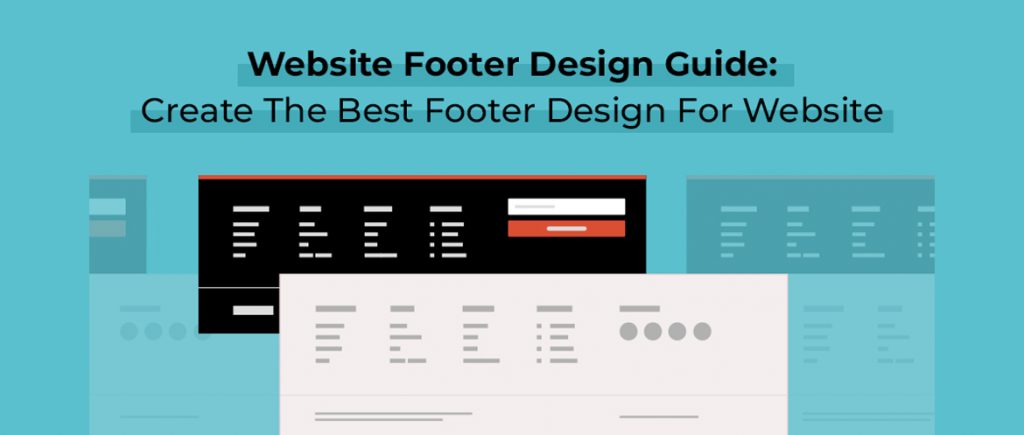
𝐂𝐨𝐦𝐩𝐥𝐞𝐭𝐞 𝐆𝐮𝐢𝐝𝐞 𝐨𝐧 𝐚 𝐒𝐮𝐜𝐜𝐞𝐬𝐬𝐟𝐮𝐥 𝐖𝐞𝐛𝐬𝐢𝐭𝐞 𝐅𝐨𝐨𝐭𝐞𝐫 𝐃𝐞𝐬𝐢𝐠𝐧


A well-designed website footer is the key to user experience, navigation, and SEO. It marks the final point of interaction on a webpage and must leave a lasting positive impression. Here's a comprehensive guide on creating a successful website footer design:

1. Purpose of a Footer

A footer serves several purposes:

  • Navigation: It assists the user in finding essential links quickly, such as privacy policy or contact information.
  • Credibility & Trust: Displaying key accreditations, certifications, or awards can give visitors that extra confidence boost.
  • SEO: Including relevant internal linking can help with search engine optimization by pointing crawlers to relevant pages.
  • User Engagement: Adding social media icons, newsletters, or contact forms can encourage continued engagement.

2. Footer Layout

A footer should be easy to understand but still useful. Here are the core elements to include:

a. Logo/Branding

  • The logo or brand name should be ideally placed at the top or center of the footer. It reinforces brand identity and often links back to the homepage.

b. Navigation Links

  • Primary Links: These are the main navigation links such as About Us, Services, Contact. This will make sure users can easily reach core pages without having to scroll up.
  • Secondary Links: Less important but useful pages such as Terms & Conditions, Privacy Policy, or FAQs.
  • Sub-navigation: If applicable, group similar links for one-click access.

c. CTA

  • A call-to-action, such as "Subscribe to Our Newsletter" or "Request a Quote, is well-suited for inclusion in a footer. Convert more visitors with this conversion-encouraging step.
  • Use a different, contrasting color to help a CTA stand out against the rest of your website.

d. Contact

  • Include simple contact information. This includes a telephone number, email address and (if applicable) an office address.
  • You can include a contact form or a contact page link, in case visitors want to get in touch directly.

Social Media Icons

  • Icons to social networking sites like Facebook, Twitter, Instagram, LinkedIn, etc, will help the users in easy search and following your social media pages.
  • Choose recognizable and standard icons with the same theme as of your website's design

Legal & Compliance Information

  • Add any legal links, such as Terms of Service, Privacy Policy, Cookie Policy, and other disclaimers, to fulfill the requirement.
  • Make it easy for users to locate these links because they may be legally required.

g. Subscribe Forms

  • Ask users to subscribe to your newsletter or receive updates about promotions and new content. This should be included in a separate section of the footer.

3. Design Tips

  • Simple Sack: Don't clutter your footer with unnecessary information. Instead, make it useful without litter.
  • Brand consistency: Use the theme of your website in its design. Match up with color scheme, font usage, and icons as everywhere else in your website
  • Typography: Font size has to be legible; also hierarchy needs to exist. Body texts are smaller, and it's expected that footers are equally readable.
  • Whitespace: Leave enough space between links, text, and elements to avoid overcrowding and enhance the user experience.
  • Responsive Design: The footer should adapt well to different screen sizes, whether on mobile, tablet, or desktop.

4. SEO Considerations

  • Internal Linking: Ensure that relevant internal links are included in the footer to improve site navigation and pass link equity to important pages.
  • Keywords: Avoid keyword stuffing, but strategically place a few relevant keywords in the footer (especially in text links).
  • Alt Text for Images: Any images (like icons) in the footer should have descriptive alt text for better accessibility and SEO.

5. Footer Example Layout

Here's a potential structure for a well-organized footer:

1. Top Section:

  • Logo with a link to the homepage.
  • Main navigation links (e.g., Home, About Us, Blog, Services, Contact).

2. Middle Section:

  • A short contact form or call to action (e.g., newsletter signup).
  • Social media icons.

3. Footer:

  • Legal links (Privacy Policy, Terms of Service).
  • More resources (Careers, Site Map).

6. More Details

  • Search Bar: If your site has a lot of content, consider adding a search bar in the footer so users can find what they need more quickly.
  • Interactive Map or Location Information: If your business has a physical presence, a map or location-related information will be useful.
  • Multilingual Support: For international businesses, including a language selector in the footer can also be helpful.

7. Footer Trends to Watch

  • Sticky Footers: A fixed footer that sticks to the bottom of the page while scrolling provides access to important links without disrupting the main content.
  • Minimalist Footers: Clean, simple footers with essential links and social media icons are gaining popularity.
  • Microinteractions: Subtle animations, like hover effects on links or icons, can make the footer feel more interactive without being overwhelming.

8. Testing and Optimization

  • A/B Testing: Test different footer designs and CTAs to see what works best for your audience.
  • Analytics: Make use of website analytics to see how often users are interacting with elements in your footer and adjust accordingly.

"Find Out What Your Website’s Missing – Let’s Talk Today"

Friday, 20 December 2024

𝐖𝐡𝐚𝐭 𝐫𝐨𝐥𝐞 𝐝𝐨𝐞𝐬 𝐬𝐞𝐞𝐤 𝐞𝐧𝐠𝐢𝐧𝐞 𝐚𝐝𝐯𝐞𝐫𝐭𝐢𝐬𝐢𝐧𝐠 𝐩𝐥𝐚𝐲 𝐢𝐧 𝐰е𝐛 𝐝е𝐬𝐢𝐠𝐧?


Search engine advertising, also known as pay-per-click (PPC) advertising, plays a critical role in web design, as it affects how websites are structured, designed, and optimized to maximize their advertising effectiveness. Below are the key ways SEA impacts web design:


1. Landing Page Optimization

  • Relevance: A good SEA campaign sends users to very targeted landing pages. These pages should be aligned with the ad's message, keywords, and user intent.
  • Design for Conversions: Landing pages are often designed with minimal distractions, clear calls-to-action (CTAs), and persuasive design elements to maximize conversions.
  • Mobile-Friendly Design: With many SEA clicks coming from mobile devices, web design needs to ensure seamless mobile experiences to prevent drop-offs.

2. Fast Load Times

  • Page Speed: Google and other search engines consider page speed a determinant of ad quality scores. A web design must, therefore, ensure fast loading pages by optimizing images, compressing code, and ensuring efficient hosting.
  • Performance Metrics: The designer can use Google PageSpeed Insights to check if the site meets performance metrics.

3. User Experience (UX)

  • Easy Navigation: A good website design should allow users to find what they need easily. This minimizes bounce rates and maximizes ad campaign success.
  • Clear CTAs: Obvious buttons, links, and forms that direct visitors toward registration, buying, and download of content.

4. SEO and SEA Compliance

  • Keyword Usage: Integrating keywords in headings, meta description, and content in general makes web design compliant with the requirements of SEO to synchronize organic traffic efforts and campaigns SEA.
  • Ad Copy Continuity: Ad copy continuity with the website's content will build user trust and increase conversion rates.

5. A/B Testing Support

  • Dynamic Content: Web design can have features that support A/B testing of layouts, headlines, and CTAs to determine which ones work well with SEA campaigns.
  • Customizable Design: Flexible design frameworks enable rapid changes based on advertising performance insights.

6. Trust and Credibility

  • Professional Aesthetic: First-time visitors also come from ads. A professional look and feel will instill trust and make users stay longer.
  • Security Measures: Having secure designs, such as HTTPS, is also fundamental because they affect trust levels and user willingness to get involved, especially when in SEA-driven traffic.

7. Integration with Analytics

  • Tracking Pixels: Web design must accommodate tools, such as Google Ads conversion tracking or Facebook Pixels, for measuring the SEA campaign's performance.
  • Heatmaps and Session Recording: Analytics can be embedded to study the behavior of users and optimize the web elements for better campaign ROI.

8. Brand Consistency

  • Visual Consistency: The website design must align with the branding done in the SEA campaigns, such as the logo, color scheme, and typography.
  • Message Consistency: The tone and value propositions in the ads must reflect the content and offerings on the website.


"Find Out What Your Website’s Missing – Let’s Talk Today"

Thursday, 19 December 2024

𝐖𝐡𝐚𝐭 𝐚𝐫𝐞 𝐭𝐡𝐞 𝐰𝐚𝐲𝐬 𝐨𝐟 𝐦𝐚𝐤𝐢𝐧𝐠 𝐭𝐡𝐞 𝐥𝐨𝐚𝐝𝐢𝐧𝐠 𝐬𝐩𝐞𝐞𝐝 𝐨𝐟 𝐦𝐲 𝐰𝐞𝐛𝐬𝐢𝐭𝐞 𝐛𝐞𝐭𝐭𝐞𝐫?


Improving the loading speed of your website is crucial for better user experience, SEO, and overall performance. Here are several ways to optimize loading speed:


1. Optimize Images

  • Compress Images: Use tools like TinyPNG or ImageOptim to reduce file size without losing quality.
  • Use Correct Formats: Prefer modern formats like WebP over older ones like PNG and JPEG.
  • Lazy Loading: Load images only when they are about to enter the viewport.

2. Enable Browser Caching

  • Store static files (CSS, JS, images) locally on users' browsers for a set period so that the returning visitors don't need to reload them.

3. Minify Resources

  • Minify CSS, JavaScript, and HTML: Remove unnecessary characters like spaces and comments, in order to reduce the size of the file. Utilize tools like UglifyJS or CSSNano.
  • Combine Files: It will reduce HTTP requests because CSS and JavaScript files will be combined.

4. Use a Content Delivery Network (CDN)

  • Disperse your website's content around a different servers, geographically distributed so it can serve users from a server closest to them; decrease latency.

5. Enable Gzip Compression

  • Compress all files on your website through Gzip or Brotli to reduce transfer size.

6. Reduce HTTP Requests

  • Combine CSS files and JS files.
  • Make use of CSS sprites in image styles.
  • Avoid using unnecessary plugins or external scripts.

7. Optimize Server Response Time

  • Upgrade Hosting Plan: If your traffic gets high, consider VPS or dedicated hosting.
  • Use a Fast DNS Provider: A faster DNS lookup reduces page load time.

  • Optimize Database Queries: Use indexing and cache frequently accessed data.

8. Use Asynchronous Loading

  • Load JavaScript asynchronously to prevent it from blocking the rendering of other page elements.

9. Implement AMP (Accelerated Mobile Pages)

  • AMP optimizes web pages for faster loading on mobile devices.

10. Eliminate Render-Blocking Resources

  • Defer or load JavaScript and CSS files asynchronously to prevent them from blocking the page’s rendering.

11. Keep Your Code Clean

  • Regularly review your HTML, CSS, and JavaScript code to remove redundant code.

12. Monitor and Optimize Third-Party Scripts

  • Remove unused third-party scripts, like tracking codes or social media widgets, that slow down the page.

13. Optimize Fonts

  • Use modern web fonts (e.g., WOFF2).
  • Limit the number of font variants.
  • Include font-display: swap in your CSS.

14. Test and Monitor Frequently

  • Use tools such as Google PageSpeed Insights, GTmetrix, or Lighthouse to identify bottlenecks and receive recommendations.

Wednesday, 18 December 2024

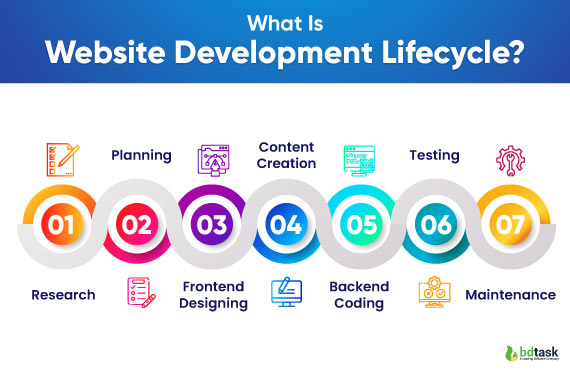
𝐖𝐡𝐚𝐭 𝐢𝐬 𝐖𝐞𝐛𝐬𝐢𝐭𝐞 𝐃𝐞𝐯𝐞𝐥𝐨𝐩𝐦𝐞𝐧𝐭 𝐋𝐢𝐟𝐞𝐜𝐲𝐜𝐥𝐞?


The Website Development Lifecycle

is an organized structure outlining the processes involved in the development and maintenance of a website. It makes the development process efficient, well-structured, and productive, which will ultimately produce product of quality and meet users' and businesses' requirementsThere are usually five stages that define the website development lifecycle as follows:

1. Requirement Analysis

  • Objective Definition: Purpose of the website (example: business promotion, e-commerce, information sharing).
  • Audience Identification: Identify the target audience and their needs.
  • Functional Requirements: Identify key features such as forms, user accounts, e-commerce capabilities, etc.
  • Technical Requirements: Define hosting, domain, security, and scalability needs.
  • Functional Requirements: Identify key features such as forms, user accounts, e-commerce capabilities, etc.
  • Technical Requirements: Define hosting, domain, security, and scalability needs.
  • Functional Requirements: Identify key features such as forms, user accounts, e-commerce capabilities, etc.
  • Technical Requirements: Define hosting, domain, security, and scalability needs.

2. Planning

  • Project Scope: Define the timeline, milestones, and resources.
  • Site Architecture: Outline the structure of the website, including the sitemap and page hierarchy.
  • Technology Stack: Select tools, frameworks, and programming languages (e.g., HTML, CSS, JavaScript, PHP, Python).
  • Team Allocation: Assign DesignerDeveloper, and tester roles.

3. Design

  • Wireframes: low-fidelity layouts that illustrate the wireframe structure and placement.
  • Prototypes: interactive model to visualize user journeys and functionality.

  • UI/UX Designingwebsite appearance (UI) and ease of navigation (UX)
  • StakeholderFeedback: Collect and implement feedbacks on the designing.

4. Development

  • Front-End Development building the UI using HTMl, CSS and JavaScript.

  • Back-End Development: This is the development of server-side logic, databases, and APIs that govern data processing and storage.

  • Integration: Connect the front-end and back-end 
  • Responsive Design: Ensure the website works on various devices and screen sizes.

5. Testing

  • Functionality Testing: All features such as forms, buttons, and navigation should work.

  • Compatibility Testing: The website must run smoothly on different browsers and devices.
  • Performance Testing: It measures load times and improves for speed.
  • Security Testing: Look for vulnerabilities and deploy measures like SSL and firewalls.
  • User Acceptance Testing (UAT): Test with real users to ensure it meets expectations.

6. Launch

  • Deployment: Make the website live on the server and set up the domain settings.

  • Monitoring: Start monitoring the website's performance and fix any immediate problems.

  • Promotion: Marketing campaigns, social media, and email should be informed of the launch.

7. Maintenance

  • Bug Fixes: Fix bugs as they happen after the launch.
  • Content Updates: The content added or updated keeps the site relevant.
  • Feature Upgrades: New features are added based on feedback from users or business growth.
  • Performance Monitoring: Through analytics tools, track traffic, conversions, and bounce rates.
  • Security Updates: Software and plugins are kept updated regularly to prevent vulnerabilities.

Best Patterns Generator Websites for Your Design

  1. Pattern Monster Free online tool to generate seamless SVG patterns. Customizable colors, shapes, and scales. Download in multiple forma...