Thursday, 5 December 2024

How You Can Make Your WEBSITE ACCESSIBLE to Everyone?


Making your website accessible to everyone involves designing and developing it so that people with disabilities can perceive, understand, navigate, and interact with it effectively. Accessibility ensures that everyone with visual, auditory, motor, or cognitive impairments has equal access and also increases usability for all.


Steps to Make Your Website Accessible

Follow Web Content Accessibility Guidelines (WCAG)

use  to the WCAG 2.1 or later that offers standards based on four principles:

Perceivable: present the content  in a ways users can perceive (e.g., text alternatives for images).

Operable: The website is easy for the user to interact with through keyboards or other control devices.

Understandable: Make the content readable and predictable.

Robust: Be compatible with assistive technologies (e.g., screen readers).


Provide Text Alternatives (Alt Text)

Add descriptive alt text for all images so screen readers can convey their purpose to visually impaired users.

Ensure Keyboard Navigation

Design your site so that all functionalities are accessible using only a keyboard (e.g., tab navigation for menus and buttons).

Use Descriptive Links

Write meaningful link text that explains the link's purpose (e.g., avoid "Click here" and instead use "Learn more about our services").

Optimize for Screen Readers

Use proper HTML semantics (e.g., <header>, <nav>, <main>, <footer>) to structure content logically.

Provide ARIA (Accessible Rich Internet Applications) labels for interactive elements.

Provide Closed Captions and Transcripts

Include captions for video content and transcripts for audio materials to accommodate hearing-impaired users.

Maintain Color Contrast

Ensure sufficient contrast between text and background colors to make content readable for users with visual impairments. Use tools like the WebAIM Contrast Checker to test contrast ratios.

Enable Text Resizing

Design your website so users can resize text up to 200% without losing functionality or readability.

Avoid Flashing Content

Minimize or eliminate flashing animations, as they can trigger seizures in users with photosensitive epilepsy.

Design for Cognitive Accessibility

Use simple language and clear instructions.

Break content into smaller, digestible sections with headings and bullet points.

Test with Assistive Technologies

Use tools like screen readers (e.g., JAWS, NVDA) and keyboard-only navigation to test your site.

Gather feedback from users with disabilities.

Provide Error Notifications and Suggestions

Make forms accessible by providing clear instructions, error notifications, and suggestions for correcting input errors.

Optimize for Mobile Accessibility

Ensure your site is responsive and accessible on mobile devices, following WCAG mobile accessibility guidelines.

Tools to Evaluate Accessibility

  • WAVE (Web Accessibility Evaluation Tool): Checks for WCAG compliance.
  • Lighthouse (by Google): Evaluates accessibility as part of website performance testing.
  • axe Accessibility Checker: A browser extension to identify accessibility issues.


Benefits of Accessibility

  • Increased Reach: Makes your website usable by a broader audience.
  • Better SEO: Accessibility improvements often align with SEO best practices.
  • Legal Compliance: Meets standards like ADA (Americans with Disabilities Act) or Section 508 (in the U.S.) to avoid legal issues.
  • Enhanced User Experience: Improves usability for all visitors, not just those with disabilities.
Wednesday, 4 December 2024

The Importance of SEO-Friendly URLs in Web Design


The Importance of SEO-Friendly URLs in Web Design: 

1. Improved Search Engine Rankings:

SEO-friendly URLs help search engines understand the content of a page, making it more likely to rank higher. Keywords included in URLs give search engines a clearer context for the page.


2. Better User Experience:

Clean, descriptive URLs are easier for users to read, understand, and remember. This enhances trust and encourages more clicks.


3. Higher Click-Through Rates (CTR):

More likely to click the link are users in the search results. If the content of the page is very much reflected by the URL, there's a chance that more people will click it.


4. Easier Sharing:

Short, easy URLs are easily shared. The URL is unlikely to get cut off by the medium when short, and so the whole link gets transmitted.


5. Better website structure:

SEO-friendly URLs tend to reflect the logical structure of the site, making the content easier for search engines to crawl and index.


6. Faster for Mobile and Voice Search:

Clean URLs work better with voice search queries, where users often search with natural language. They tend to be more mobile friendly.


7. Supports Rich Snippets:

Properly structured URLs improve the chances of getting featured snippets, which provide more visibility in search results.


8. Increases Crawlability:

Shorter, more organized URLs improve how search engines crawl and index your pages, which improves the general performance of your site.


9. Keyword Optimization

Incorporating relevant keywords into your URL helps both the search engine and users know what the page is about. This improves ranking for the targeted keywords.


SEO-Friendly URL Example:

www.yoursite.com/healthy-eating-tips

Why It's Good: It is descriptive, incorporates relevant keywords, easy to read, and assists the search engine in understanding what's inside the content.


Non-SEO-Friendly URL Example:

www.yoursite.com/?p=12345

Why It's Bad: Has irrelevant random numbers, unclear meaning, and not helpful for knowing the page. 


Best Practices for SEO-Friendly URLs:

  • Use relevant keywords to describe the content.
  • Keep URLs short and simple.
  • Use hyphens (-) instead of underscores (_).
  • Avoid special characters and unnecessary parameters.
  • Use lowercase letters to prevent confusion or duplication.

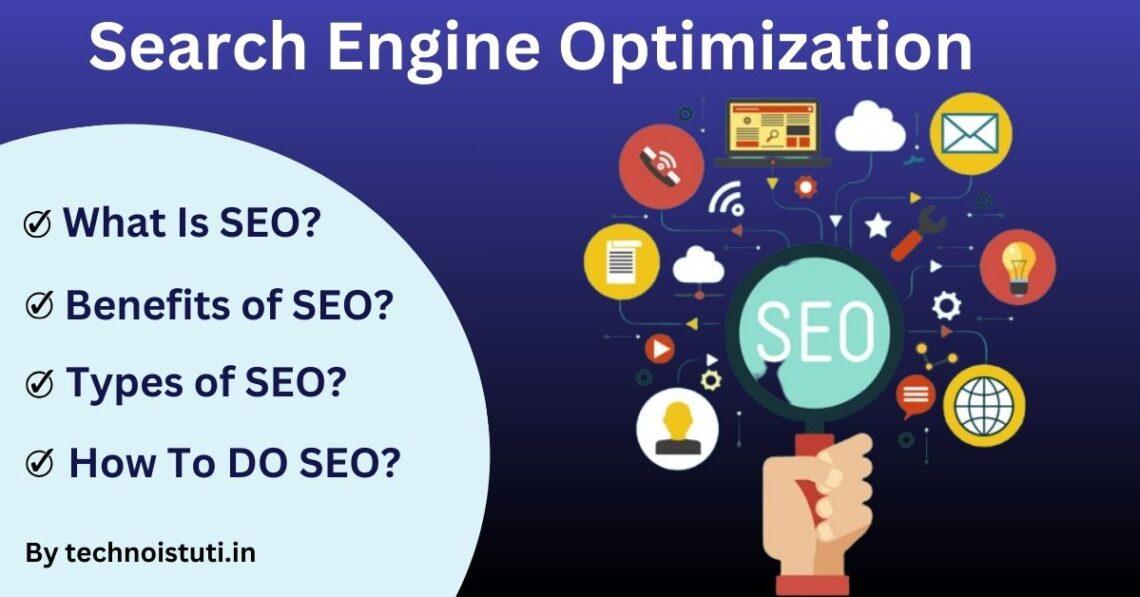
Search Engine Optimization


What is SEO?

SEO, or Search Engine Optimization, is the practice of optimizing your website to improve its visibility on search engines like Google, Bing, and Yahoo. It involves techniques that help increase the quantity and quality of traffic to your website through organic (non-paid) search results.


Benefits of SEO :

  • Increased Website Traffic: Boosts organic visibility and attracts more visitors.
  • Cost-Effective: Drives free, long-term traffic compared to paid ads.
  • Builds Trust: Higher position builds credibility and authority.
  • Better User Experience: improves site speed, mobile-friendliness, and navigation.
  • Higher ROI: Targets users actively searching for your products or services.
  • Local Visibility: Optimizes for "near me" searches, attracting nearby customers.
  • Competitive Edge: Outrank competitors and gain a larger market share.
  • Brand Awareness: Improves recognition by appearing in top search results.
  • Content Boost: Ensures your content reaches the right audience.
  • Sustainable Growth: Delivers long-term results with consistent effort.


Types of SEO and Examples

On-Page SEO

  • Focus: Optimizing content, keywords, meta tags, and internal links on your website.
  • Example: Adding keywords like "best running shoes" in your blog title, headers, and URL.

Off-Page SEO

  • Focus: Building backlinks and improving your website's authority through external activities.
  • Example: Getting links from reputable sites or sharing content on social media platforms.

Technical SEO

  • Focus: Enhancing backend elements like site speed, mobile-friendliness, and crawlability.
  • Example: Speeding up your website using a CDN or fixing broken links to improve rankings.

Local SEO

  • Focus: Optimization for location-based searches in order to attract local customers.
  • Example: Creating a Google My Business profile for your local bakery.

E-Commerce SEO

  • Focus: Optimization of online stores to better showcase products.
  • Example: Unique product descriptions and reviews for better search rankings.

Enterprise SEO

  • Focus: Large-scale optimization for large websites with thousands of pages.

Tuesday, 3 December 2024

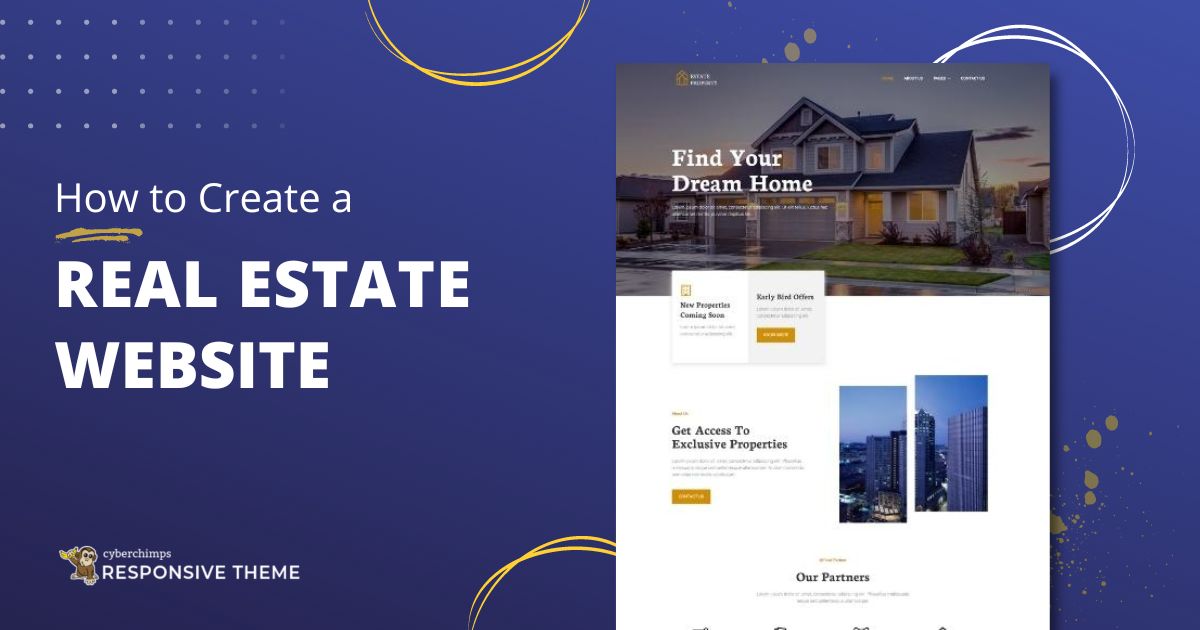
How To Create a REAL ESTATE WEBSITE.


1. Planning and Preparation:


a. Define Your Goals

  • Determine the reason for the website (listing properties, real estate services, agents).
  • Define your target audience (buyers, sellers, renters, investors).


b. Research and Competitor Analysis

  • Study successful real estate websites for inspiration.
  • Note features, design styles, and functionalities you like.


c. Choose a Domain Name

  • Select a domain name that is short, memorable, and relevant to real estate.
  • Get a domain through providers such as GoDaddy, Namecheap, or Google Domains
  • Select your hosting provider Choose an appropriate hosting plan depending on what traffic and performance would look like for your given website, such as, perhaps, Bluehost, SiteGround, or WP Engine. 


2. Real Estate Web Basic Functions:

  • Property Details/Information: Add Photos + description + key detail-informative items, such as prices + locations + square-footages 
  • Search Function : To facilitate a search by such values of filters as price-range by address.
  • interactive map display: Integrate use with your location.
  • Mobile Responsiveness: Ensure the site works smoothly on mobile devices.
  • Lead Capture Forms: Add contact forms to capture visitor details.
  • Agent Profiles: Showcase agents' expertise and contact information.
  • Blog Section: Share real estate tips, market trends, and news.
  • Testimonials: Highlight reviews from satisfied clients.
  • CRM Integration: Link to a CRM tool for managing leads and client interactions.


3. Designing the Website:

a. Choose a Platform

  • No-Code/Low-Code Platforms: Wix, Squarespace, or Weebly for simpler websites.
  • CMS: WordPress with a theme of real estate, e.g., Houzez or RealHomes.
  • Custom Development: Using HTML, CSS, and JavaScript for the customization of the website, as that requires coding skills.

b. Design Best Practices

  • Using a clean, professional look with intuitive navigation.
  • Optimizing images and code to make it fast on load.
  • Choosing the best colors, fonts, and styles that represent your brand.

c. Create or Buy a Template

  • Using pre-designed templates available from ThemeForest or Templatemonster.


4. Development Phase:

a. Introduce MLS (Multiple Listing Service)

  • Fetch and display dynamic MLS property listings using an MLS-plugin or API.

b. Crucial Pages

  • Home page: Display top properties plus search bar.
  • About: Showcase the company values/history.
  • Properties: Separate listings page.
  • Blog: Post all types of educational/promotional content.
  • Contact Us: Show all contact details, phone and email plus a contact form.

c. Analytics Setup:

  • Add a Google Analytics to analyze their user behavior and website performance and improvement.


5. Launch And Promotion:

a. Test the Website

  • Broken links, browser compatibility, and mobile responsiveness.
  • Test all forms and interactive features.

b. Optimize for SEO

  • Use relevant keywords in titles, descriptions, and content.
  • Create meta descriptions and alt text for images.
  • Ensure the site is mobile-friendly.

c. Launch and Promote

  • Announce the launch via email and social media.
  • Use paid advertising, such as Google Ads or Facebook Ads, to drive traffic.
  • Network with local agents and agencies for partnerships.

"Find Out What Your Website’s Missing – Let’s Talk Today"

6. Ongoing Maintenance:

  • Regularly update property listings and blog content.
  • Monitor site performance and fix issues promptly.
  • Stay updated on web design trends and SEO practices.

Best Code Editors for Web Designers


 1. Visual Studio Code (VS Code):

Why it's great:
  • Free, open-source, and lightweight.
  • Extensive library of extensions for web development (e.g., HTML, CSS, JavaScript, React, Angular).
  • Integrated Git, debugging tools, and terminal.
  • IntelliSense for smart code completion.
  • Platforms: Windows, macOS, Linux.


2. Sublime Text:

Why it's great:
  • Extremely fast and lightweight.
  • Powerful package control for adding plugins (e.g., Emmet for web designers).
  • Multi-selection editing for simultaneous edits.
  • Highly customizable interface.
  • Platforms: Windows, macOS, Linux.
  • Cost: Free trial; paid version available.

3. Atom:

Why it's great:
  • Open-source and hackable to meet personal needs.
  • Collaborate in real-time with Teletype.
  • Built-in package manager for easy customization.
  • GitHub integration for version control.
  • Platforms: Windows, macOS, Linux.

4. Brackets:

Why it's great:
  • Tailored for web designers with a focus on HTML, CSS, and JavaScript.
  • "Live Preview" feature to instantly see updates in your browser.
  • Preprocessor support for LESS and SCSS.
  • Simple and clean UI.
  • Platforms: Windows, macOS, Linux.


Monday, 2 December 2024

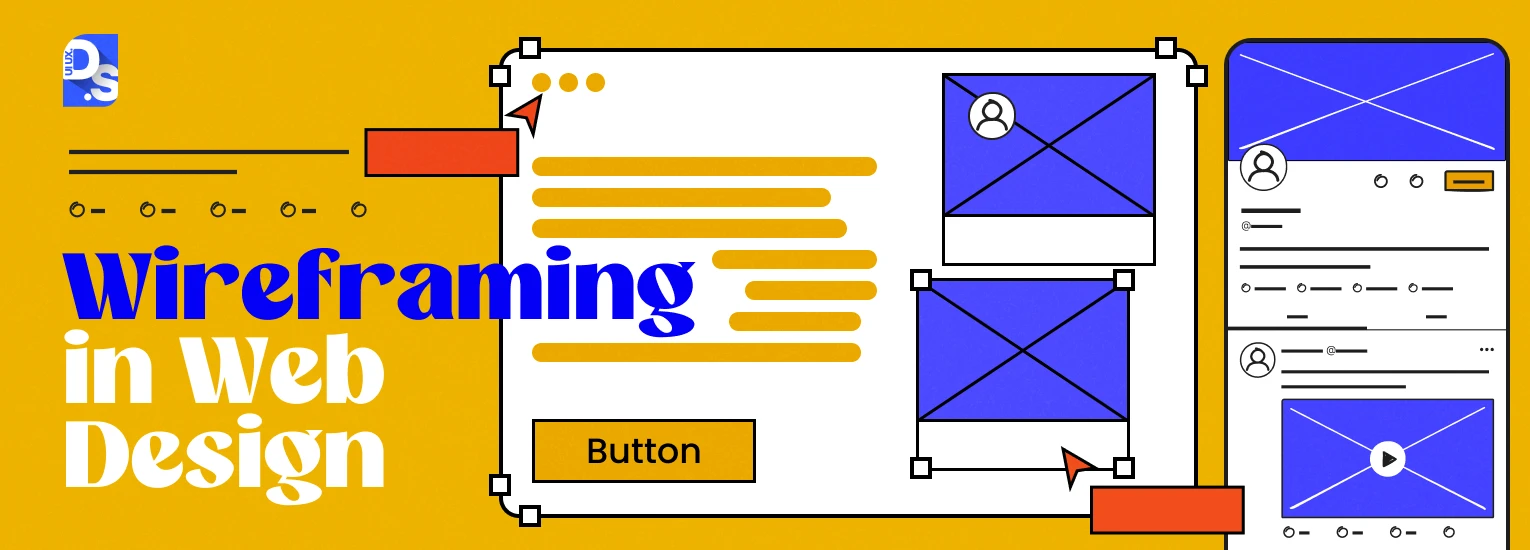
A Guide to Wireframing in Web Design


What is a Wireframe?

A wireframe is a low-fidelity, graphical representation that outlines the skeletal structure of a website or application. It focuses on layout, content hierarchy, and user interface elements without color, graphics, or high-end typography. It is the blueprint for your design.


Why Wireframing Matters:

  • Clarity of Ideas: Helps to convert ideas into tangible layouts.
  • Collaboration: Suggests feedback and collaboration with stakeholders early in the process.
  • Cost-Effective: Identifies potential issues early, saving time and resources during development.
  • Focus on Functionality: Allows designers to focus on usability and content hierarchy without being distracted by aesthetics.


Types of Wireframes:

Low-Fidelity Wireframes:

  • Simple sketches.
  • Focus on general layout and content placement.
  • Typically created using pen and paper or basic digital tools.


Mid-Fidelity Wireframes:

  • More detailed than low-fidelity.
  • Include placeholders for images and clearer text representation.
  • Useful for presenting to clients and teams.


High-Fidelity Wireframes:

  • Almost final versions with detailed layouts.
  • Include exact dimensions, typography, and possibly some interactivity.
  • Often created in design tools like Figma or Sketch.


Wireframing Tools:


  • Sketch: A vector-based design tool that is excellent for wireframing and UI designing.
  • Figma: Great for cloud-based collaborative designs.
  • Adobe XD: Used to create wireframes, prototypes, and user interfaces.
  • Balsamiq: Great for low-fidelity wireframes with hand-drawn effects.
  • InVision: Useful for making interactive wireframes and to be shared with stakeholders.                                                                                                                                                                                                                                                                                                                          

Steps to Create a Wireframe:

1. Define the Goal:

  • What is the purpose of the website/app?
  • Who is the target audience?

2. Research and Gather Content:

  • Understand user needs and behaviors.
  • Collect content that needs to be included on the site.

3. Sketch the Layout:

  • Start with rough sketches on paper or a whiteboard.
  • Define major sections (header, footer, navigation, content area).

4. Use a Grid System:

  • Align elements to a grid for consistency and balance.

5. Add Content Hierarchy:

  • Use headings, subheadings, and placeholders to prioritize content.

6. Include Key Elements:

  • Navigation menus.
  • Call-to-action buttons.
  • Forms and fields input.

7. Test and Iterate:

  • Feedback on the wireframe to the stakeholders.
  • Revision of the things necessary.

Best Practices:

  • Keep it Simple: Over-complication of the very first wireframe.
  • Useful for Usability: Functionality and user-friendly interface.
  • Consistency in the layout: Consistency across all pages.
  • Mark-up for Clarity: Comments on features or what's happening.
  • Test at an Early Stage: Validate your designs through user feedback, confirming usability.


Steps after Wireframing:

  • Prototyping : Clickable prototypes of wireframes simulating user interaction.
  • UI Design: The final visual design, add branding, colors and typography.
  • Development: Pass the wireframe and design over to developers to make it.


"Find Out What Your Website’s Missing – Let’s Talk Today"

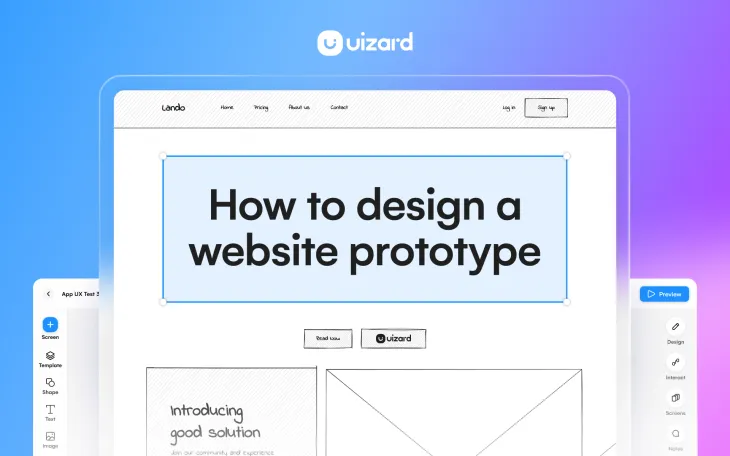
How to Create Web Design Prototypes


1. Know the Needs:

  • Client or Stakeholder Input: Get all necessary details about the project. Understand the target audience, purpose, and desired functionalities.
  • User Experience (UX) Research: Study user behavior, preferences, and potential challenges. Use personas and user journeys to guide decisions.


2. Sketch Your Ideas:

  • Pen and Paper: Begin with rough sketches to map out basic layouts and structures.
  • Wireframing Tools: Use tools like Figma, Sketch, Adobe XD, or Balsamiq for more precise wireframes.


3. Choose the Right Tools:

  • Static Prototypes: Use Adobe XD, Figma, Sketch, or InVision for designs that showcase layout and visuals.
  • Interactive Prototypes: Use tools like Proto.io, Axure RP, or Framer to add click-through functionality.


4. Design the User Interface (UI):

  • Visual Design: Select a consistent color scheme, typography, and iconography based on the brand guidelines.
  • Grid and Layout: Use grid systems to maintain alignment and responsiveness.


5. Create Interactive Elements:

  • Clickable Buttons: Simulate navigation between pages.
  • Hover States: Highlight interactive areas for better user experience.
  • Animations and Transitions: Showcase the behavior of elements like modals, sliders, or dropdown menus.


6. Test and Refine:

  • User Testing: Gather feedback from stakeholders or a test group.
  • Refine Designs: Based on feedback, make necessary adjustments to improve usability and aesthetics.


7. Document and Share:

  • Export Files: Export the prototype in formats suitable for developers (e.g., specs, assets).
  • Collaborate: Share the prototype with your team or stakeholders using tools like Figma’s live sharing or InVision.


8. Hand Off to Developers:

  • Style Guides: Provide a style guide or design system to ensure consistency.
  • Annotations: Include notes about functionality, behavior, or other implementation details.


 "Find Out What Your Website’s Missing – Let’s Talk Today"

Best Patterns Generator Websites for Your Design

  1. Pattern Monster Free online tool to generate seamless SVG patterns. Customizable colors, shapes, and scales. Download in multiple forma...